Move It v0.5.1.2
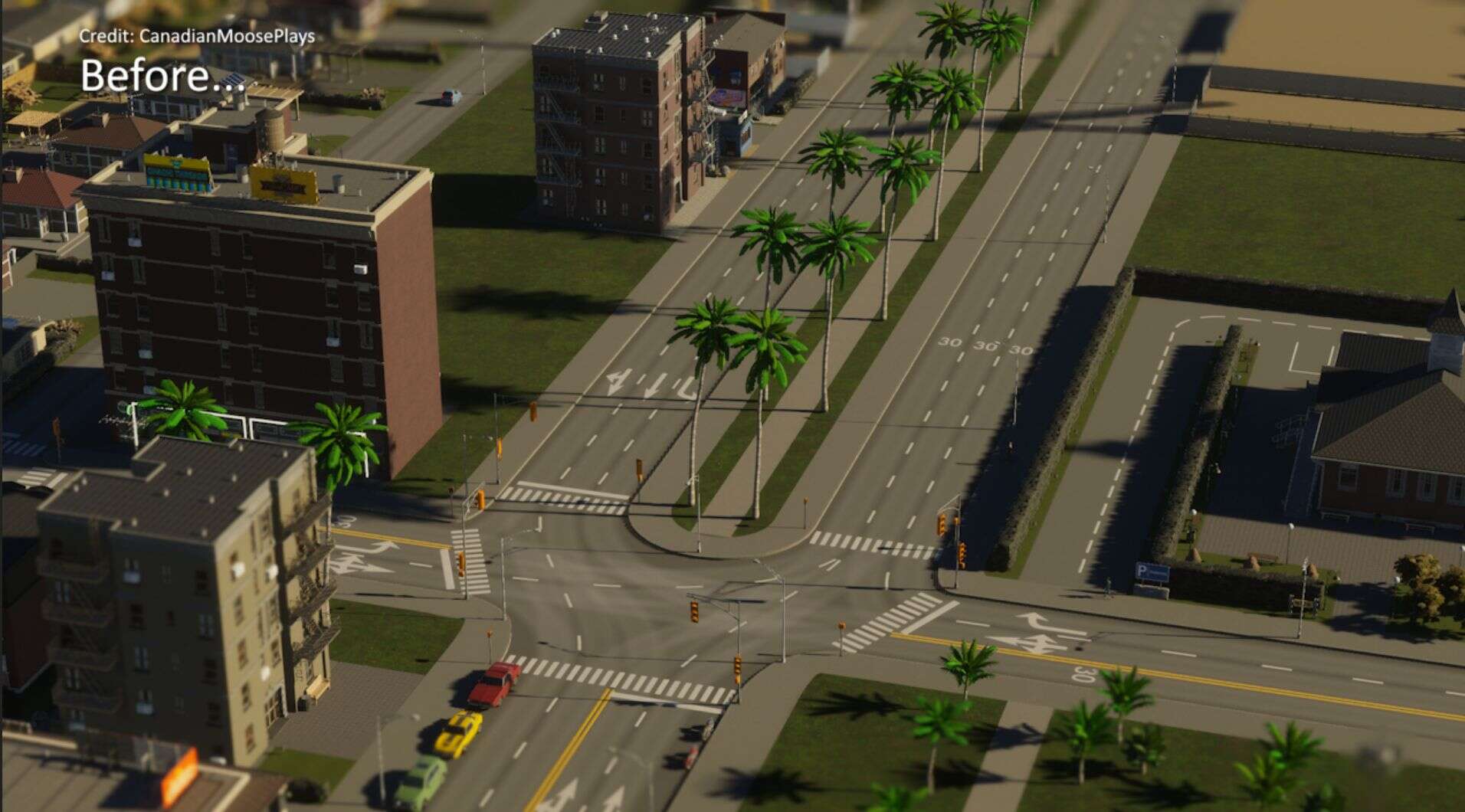
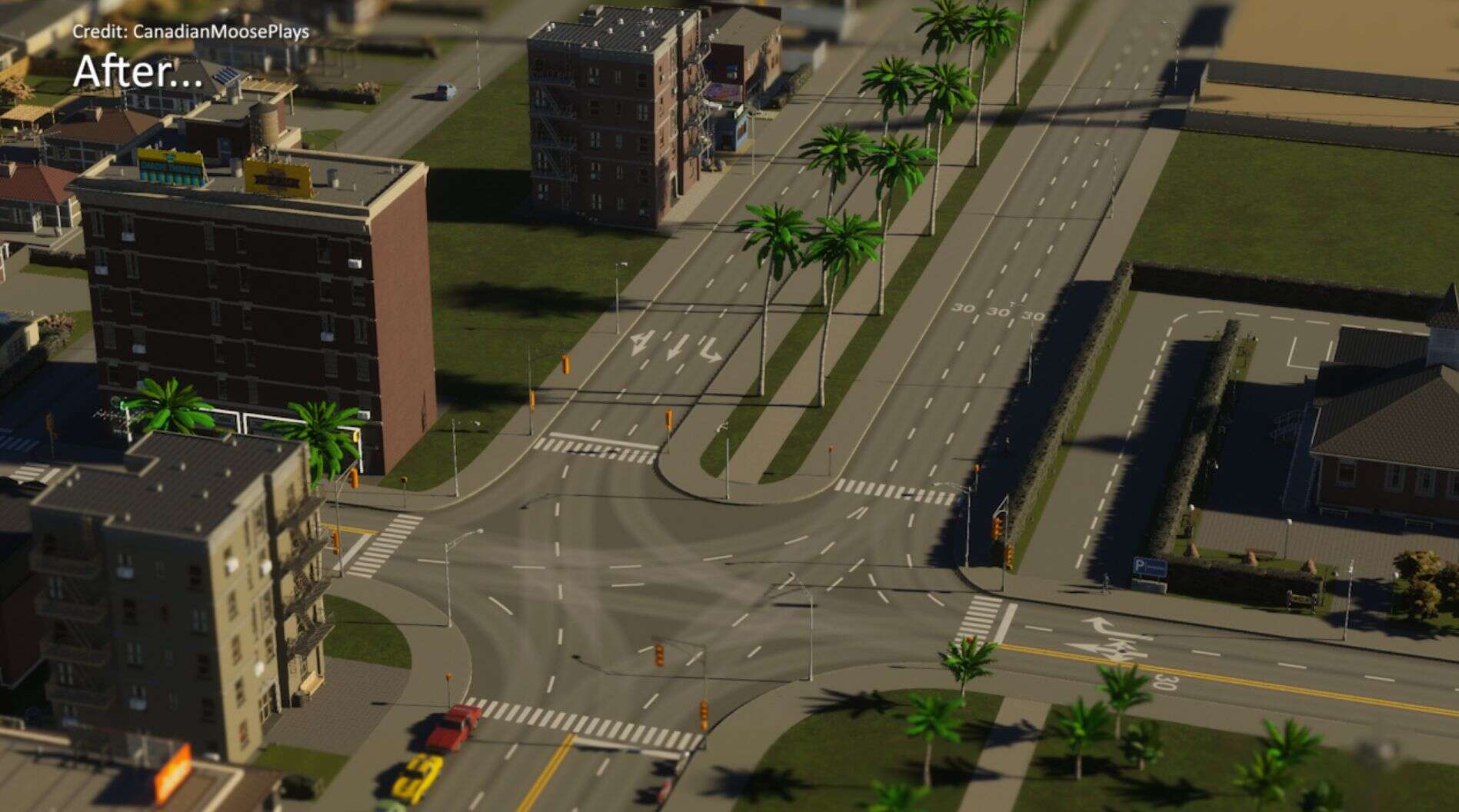
You can move trees, props, decals, buildings, surfaces, nodes, and segment curves.
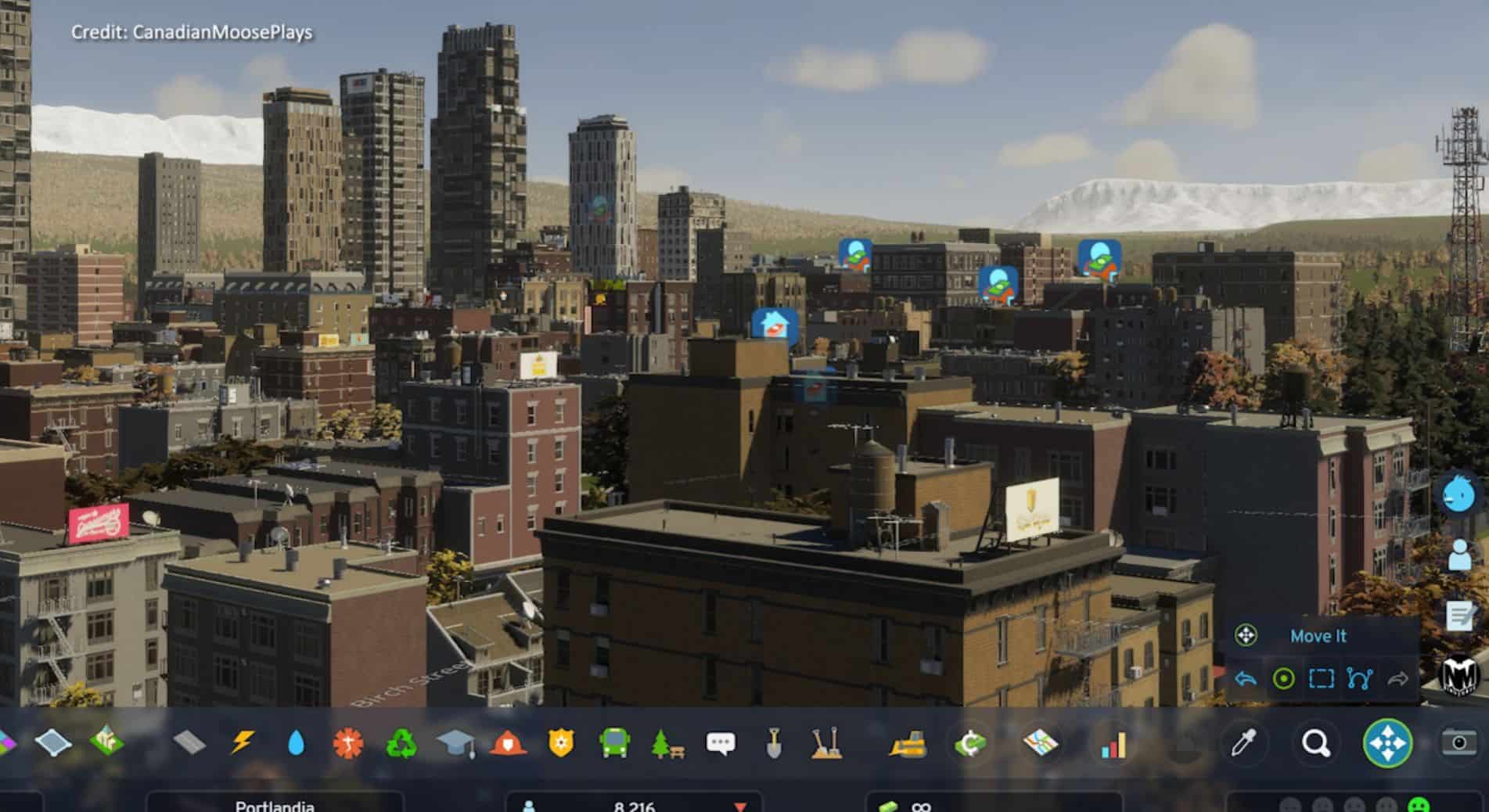
Press M or click on the Move It icon at the bottom right to enable the tool.
Important Update on Development:
I am continuing the development of Move It with permission from Quboid. This first version is still mostly Quboid’s Move It, but over time this fork may or may not diverge from where it started. Alpha testing for new upcoming features will be availble on Cities Skylines Modding Discord and Quboid’s Beta Testing Discord servers.
Dependencies
Selecting:
Left-click to select, shift+click on unselected object to add to selection or on selected object to remove from selection. Press Control+M or check options to toggle Marquee mode; when enabled you can drag out a rectangle to select multiple objects. Right-click to clear selection and hide all control points.
You can limit what types of objects are selected by opening the Filters foldout menu and unticking whatever you don’t want. The tick box at the top toggles all filters on or off, and you can right-click on any filter to enable it and disable all others. If the Filters foldout menu is closed filtering doesn’t apply.
Mode Icons:
– Single Selection – Click on individual objects to select, shift+click to add an unselected object or to remove a selected object.
– Marquee Selection – Left+Click and drag to draw out a selection box. Single Selection clicks can also be used.
– Manipulation Mode – Alter aspects within an object.
Moving and Rotating:
Left-Click drag to move selection, right-click drag to rotate selection. Alt+Right-Click drag to rotate in 45 degree increments.
While reshaping a single segment, drag to the mid-point between the nodes and hold Alt to snap to straight.
Hold Control while moving for more precision by switching to low sensitivity and hiding selection overlays.
Manipulation:
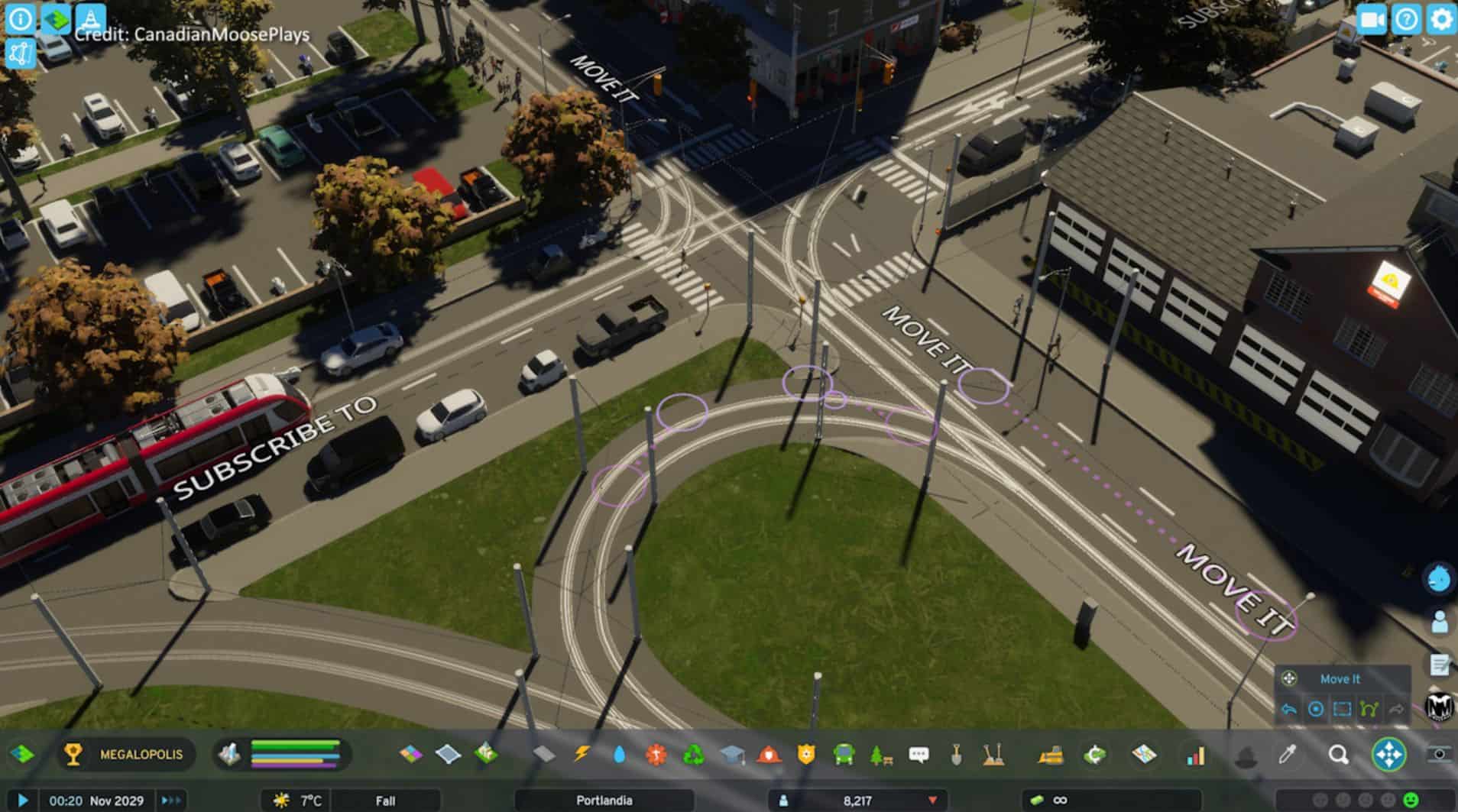
To enter manipulation mode, click on the icon, press Alt+M, or Alt+click on a manipulatable object. To leave, choose a different mode, press Alt+M, or right-click with nothing selected to leave manipulation mode. For now, only segments can be manipulated.
Manipulating segments – you can move the control points in all three axis; the 2 node connections and the 2 curve points. This is very powerful, and extreme alterations will cause visual glitching and may break traffic routing. Control Points snap along their visible line. Also, for node connections drag to the node and hold Alt to snap to the node’s position, and for curve points, drag to a third of the way between the segment’s two nodes and hold Alt to snap it to a straight line.
Toolbox
– Align to Terrain Height [Control+G] – Selected objects move up or down to terrain height. This does not work with objects that affect terrain, which includes buildings and ground-level networks.
– Align to Object Height [Control+H] – Selected objects move up or down to the height of whatever object you click on.
– Rotate at Center [Alt+A] – Selected objects rotate to face the same direction as whatever object you click on, rotating around the selection’s central point.
– Rotate in-Place [Shift+A] – Selected objects rotate to face the same direction as whatever object you click on, without changing their position.
Options:
– Invert Rotation – Move It uses the same rotation direction that Cities 1 and Move It for Cities 1 used. If you prefer Cities 2’s direction, you can invert it.
– Extended Debug Logging – Saves more information to the log file to help me hunt down errors.
– Save Logs To Desktop – Saves your current log files to your desktop so you can easily submit them with bug reports. You can also do this with Skyve.
– Advanced: Show Debug Panel – Show some technical information about Move It’s current status. You probably don’t want this.
– Advanced: Hide Move It Icon – If the icon is causing crashing issues and nothing else helps, enable this to hide the icon.
– Advanced: Show Debug Lines – Displays some debugging data.
Hotkeys: view and change any keyboard settings here.
Save often, save different.
Known Issues
– Align to terrain height does not yet work with objects that affect terrain, e.g. buildings and on-ground roads.
– Page Up/Down do not work in the editor. Use Numpad 9 and 3 instead, or rebind the move up/down keys.
– Some players experience an occasional crashes relating to undo/redo manipulation mode changes.